How to renew your Cityworks 23 license via Host Installer
If changes have been made to your licensing, it may be necessary to activate or reactivate your Cityworks license key. In this blog, we provide a step-by-step guide on how to renew your license. In Cityworks 23, an Administrator can login into the host site URL to update the license. To access the host site login page, add/host to your base site URL (ex. https://<server.domain.com/<sitename>/host) and follow the steps below.
- Login as a Host Admin User.
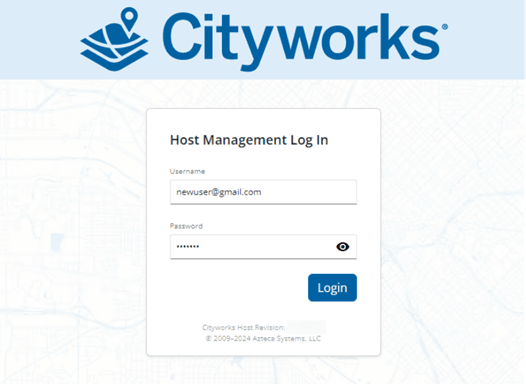
Cityworks Host Management login screen
- Once logged in, click the Core App option in the top left of the screen.
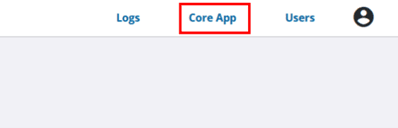
Navigation bar of the Cityworks Host Management interface showing active selection on “Core App"
- Click “Configure App”.
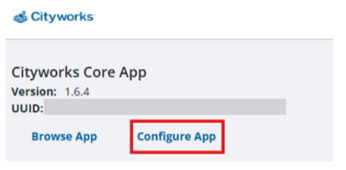
Cityworks Core App panel showing version details and the option to configure the application
- From here, Click the edit icon next to Cityworks License.
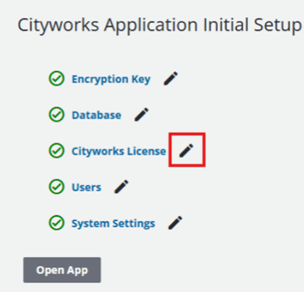
Cityworks Application Initial Setup screen showing all setup components completed, with emphasis on the Cityworks License section
- Click “Online Activation”.
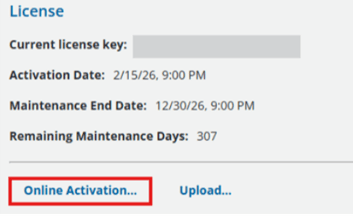
Cityworks License screen displaying current license details and activation options
- Enter the License Key and click “Activate”.
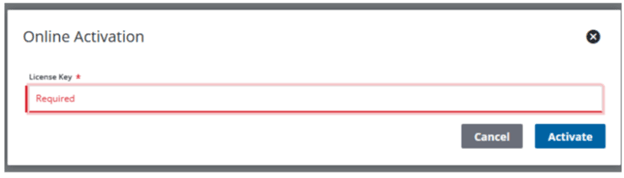
Online Activation dialog prompting the user to enter a required license key before proceeding
- Click “Restart Application”.
IMPORTANT: Unless otherwise noted, the key code remains the same code used to originally activate the site; only your contract dates are updated on the license server. However, it's possible that a new key code is issued, so it is important to verify by reviewing the documentation sent to you by the licensing team.
Offline Activation
If you require an offline activation, contact Esri Canada Technical Support via phone 1-877-441-0337 or by email support@esri.ca.
Essential Guides Available on MyCityworks
HOW TO: Renew Your Cityworks License File